 0
comments
0
comments
android.app.Notification.Builder is a builder class for Notification objects. Provides a convenient way to set the various fields of a Notification and generate content views using the platforms notification layout template. If your app supports versions of Android as old as API level 4, you can instead use NotificationCompat.Builder, available in the Android Support library.


Note: minSdkVersion have to be set ="16".
Read more
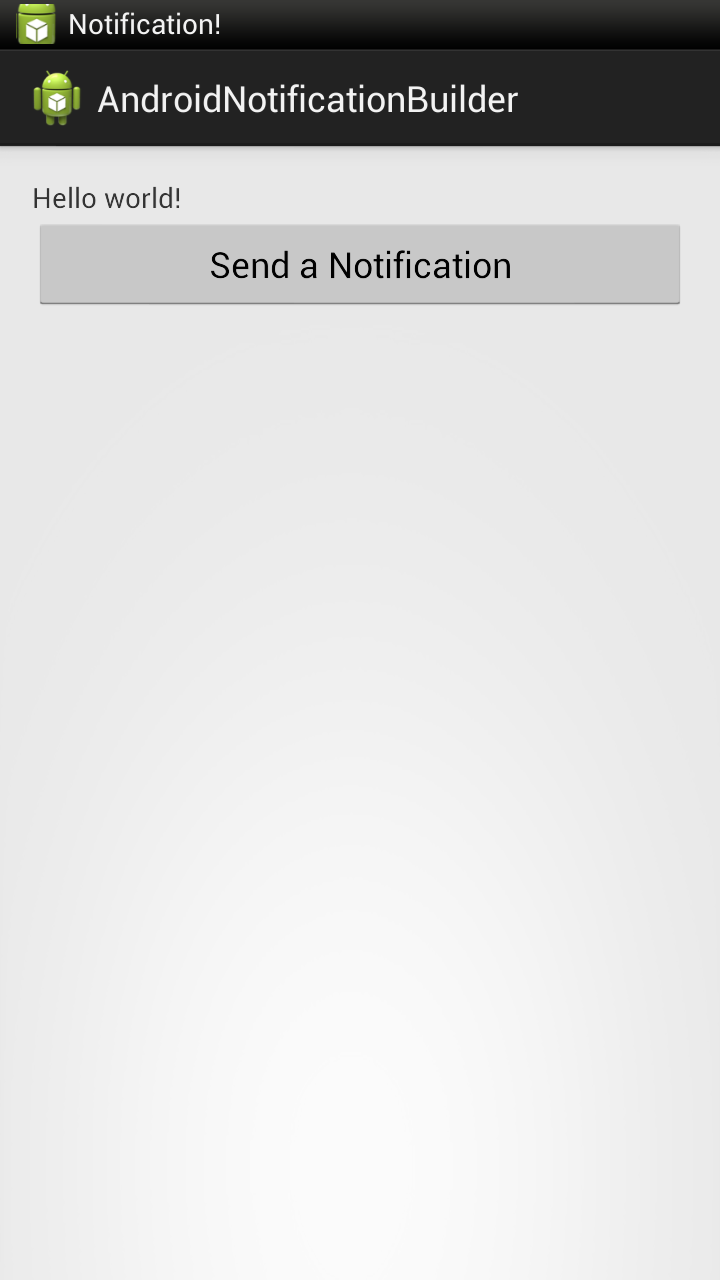

package com.example.androidnotificationbuilder;

import android.app.Activity;
import android.app.Notification;
import android.app.NotificationManager;
import android.app.PendingIntent;
import android.content.Context;
import android.content.Intent;
import android.net.Uri;
import android.os.Bundle;
import android.view.View;
import android.view.View.OnClickListener;
import android.widget.Button;

public class MainActivity extends Activity {

 private static final int MY_NOTIFICATION_ID=1;
 NotificationManager notificationManager;
 Notification myNotification;
 private final String myBlog = "http://android-er.blogspot.com/";

 @Override
 protected void onCreate(Bundle savedInstanceState) {
  super.onCreate(savedInstanceState);
  setContentView(R.layout.activity_main);
  Button buttonSend = (Button)findViewById(R.id.send);
  buttonSend.setOnClickListener(new OnClickListener(){

   @Override
   public void onClick(View arg0) {
    Context context = getApplicationContext();
    Intent myIntent = new Intent(Intent.ACTION_VIEW, Uri.parse(myBlog));
    PendingIntent pendingIntent = PendingIntent.getActivity(
      MainActivity.this,
      0,
      myIntent,
      Intent.FLAG_ACTIVITY_NEW_TASK);

    myNotification = new Notification.Builder(context)
          .setContentTitle("Exercise of Notification!")
          .setContentText("http://android-er.blogspot.com/")
          .setTicker("Notification!")
          .setWhen(System.currentTimeMillis())
          .setContentIntent(pendingIntent)
          .setDefaults(Notification.DEFAULT_SOUND)
          .setAutoCancel(true)
          .setSmallIcon(R.drawable.ic_launcher)
          .build();

    notificationManager = (NotificationManager)getSystemService(Context.NOTIFICATION_SERVICE);
    notificationManager.notify(MY_NOTIFICATION_ID, myNotification);

   }});

 }

}
<LinearLayout xmlns:android="http://schemas.android.com/apk/res/android"
    xmlns:tools="http://schemas.android.com/tools"
    android:layout_width="match_parent"
    android:layout_height="match_parent"
    android:paddingBottom="@dimen/activity_vertical_margin"
    android:paddingLeft="@dimen/activity_horizontal_margin"
    android:paddingRight="@dimen/activity_horizontal_margin"
    android:paddingTop="@dimen/activity_vertical_margin"
    android:orientation="vertical"
    tools:context=".MainActivity" >

    <TextView
        android:layout_width="wrap_content"
        android:layout_height="wrap_content"
        android:text="@string/hello_world" />
    <Button
        android:id="@+id/send"
        android:layout_width="fill_parent"
        android:layout_height="wrap_content"
        android:text="Send a Notification" />

</LinearLayout>
Note: minSdkVersion have to be set ="16".


